v.0.9.7 (beta)
quince
user guide
english
developer guide
english
 Thank you very much for your interest in quince !
 quince is an open source software project initiated by Maximilian Marcoll in 2010. It is released under the GNU General Public License. You should have received a copy of the GNU General Public License along with quince. If not, see http://www.gnu.org/licenses/. quince can be downloaded from the quince website at: http://quince.maximilianmarcoll.de. The sources are available at http://github.com/mmax/quince. The quince icon was designed by Stephane Leonard. If you come across any errors in the documentation, bugs in the software itsself, if you need a plug-in for quince that you can't develop yourself, or if you have any other questions, please write to quince@maximilianmarcoll.de. Thank you!
Index
quince is a program for editing time based data on the mac. Although quince was developed to serve musical purposes, theoretically, not only audio but video and every other time based data type can be edited in quince. Generally speaking, the main application for quince is the creation and editing of sequences of events in time.
Thus, the great thing about quince is not only what it already can do, but also how easy it is to add new functionality. quince was developed from a point of view which assumes that a software for artisic tasks is always insufficient. There are always some features missing and it almost never can exactly do what you need. Standard daws and sequencers are stable, powerfull and convenient, but they are also inflexible, in most cases not extensible and for many tasks which are a bit off the main road, they are simply useless. quince is not a substitution for a daw. If you're looking for a convenient tool to arrange sounds and mix tracks, there are already some wonderful solutions out there. quince is something different.
The biggest difference between quince and the standard daw is that quince does not operate in the 'tape recorder vs mixing desk'-paradigm. In quince there are no channels in which audio data is arranged, and since there are no channels, there also is no need for a mixer to mix them. Instead, quince presents it's contents in display strips which can contain arbitrary numbers of layers of data.
Another big difference is that quince is not limited to the processing of audio data. quince is able to handle all time based data types. Whether an event represents a video clip, an audio file, or whether the event should trigger the execution of a shell script is dependent only on the existence of an appropiate plug-in. Please read on to learn why.
quince is based on a core, which handles basic operational tasks such as file and object management, but which does not implement functionality that you can actually use to work on sequences of events. The core does however provide an interface for plug-ins. Almost all of the functionality of quince is implemented in plug-ins: There are display plug-ins (ContainerViews and ChildViews), function plug-ins (Functions) and player plug-ins (Players). quince is designed to be extensible, the interface to the core (the Quince API) is very flexible and the amount of code that needs to be written to add a new plug-in is minimal. quince may be an option for all those who have their own ideas on how to treat their data, who are not satisfied with standard solutions and for those who are able to write a few lines of code to implement custom functions on their own.
quince manages all the data of a session (file) in the pool. The pool contains two tables: a table with objects created by the user (on the left) and a table containing functions and function graphs (on the right).
Below the tables there are a few buttons:
Fold Selection
Please read the chapter fold/unfold below for more information.
Remove Selection
Deletes the selected objets.
New Data File
Creates a new object of type DataFile, which can represent any file type.
New Object
Creates a new object of type QuinceObject with standard parameters.
Copy Selection
Duplicates the selected objects.
New Audio File
Creates a new object of type AudioFile with a reference to an audio file on disk.
New Object For Audio File
When an AudioFile is selected in the pool: Creates a new object of type QuinceObject with a reference to the selected AudioFile object. Read the chapter AudioFiles below for more information.
Execute
Executes the selected function.
Since version 0.9.6 the pool automatically hides items (objects and functions) if they are incompatible with the selection in the other table respectively. To reset the hidden items press Command+Option+C.
In quince, data is represented in the form of objects, most of the are of type QuinceObject. A QuinceObject is just a collection of parameters. A QuinceObject with default parameters is an event, with a start, a duration, a name and a description. An event can contain other events (subEvents or subObjects). An event with subEvents is called a sequence, but it still is an object of type QuinceObject.
Parameter
A parameter is a pair of an identifier (key) like "volume" and a value, like -9dB. Every object has a few standard parameters like name, start, duration and type, can have any number of parameters and apart from a few reserved identifiers you can add any parameter to an object. (See Appendix A for a list of reserved parameter identifiers.)
To see the parameters of an object, to change their values or to add a new parameter to the object, select the object and open the inspector by clicking on the inspector icon in the toolbar.
SubEvents
Every event can have subEvents. In quince there is no direct differentiation between a sequence and the events a sequence consists of. A sequence simply is an event with subEvents. Accordingly, an event can contain subEvents which themselves contain subEvents and so on. There is no limit to the depth of the object tree.
Strips
A strip is an area where layers can display data. A quince session can contain any number of strips. When there is more than one strip in a session, there is one active strip which reacts to user input (keyboard and/or mouse). The active strip is marked with a blue frame. To create a new strip click on "Add Strip" in the toolbar. To remove the active strip, click on "Remove Strip". A strip is represented in a StripController (which essentially is a table with LayerControllers) which has buttons to add or remove layers.
A layer is where objects can actually be displayed and edited. Layers are represented in a LayerController, containing a pop-up for choosing a ContainerView (see next chapter for more information on ContainerViews), a button to load an object into the layer, a check box to hide/unhide the layer and a text field with the name of the currently loaded object. 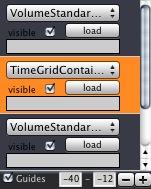
A layer has to be active in order to react to user input. To make a layer active, click in an empty area in the LayerController. The LayerController will become a little brighter and the layer will become active. The position of the layer in it's strip is irrelevant in this context. You can always edit any layer, even if some other layers are displayed in front of the one you want to edit.
To create a new layer or to remove the active layer of a strip click on "+" or "-", respectively, in the lower part of the StripController.
On the left to the "-" and "+" , you can activate/deactivate guides in the strip and specify the range of the values, visible in the strip (vertical zoom).
ContainerViews and ChildViews
If there is an object loaded in a layer, it is being displayed by a ContainerView. ContainerViews are plug-ins that allow the display and editing of certain types of objects. If the loaded object contains subEvents and if the selected ContainerView supports it, the object's subEvents will be displayed too, using ChildView objects which can be selected and edited inside the ContainerView.
To load an object into a ContainerView select a ContainerView in the LayerController, select an object in the object table of the pool and click on "load" in the LayerController of the layer you want the object to be loaded into.
Some ContainerViews can only display certain types of objects. For instance, the ContainerView "EnvelopeContainer" can only dispay objects of type Envelope. It will present an error message if you try to load any other type of object.
For more information on the behaviour of ContainerViews, please read the chapter ContainerViews in the Plug-In Reference.
The following integrated types are available:
AudioFile, a reference to an AudioFile on disc
DataFile, a reference to any kind of file on disc
Envelope, an object containing an array of volume values, typically generated analyzing an AudioFile
PitchCurve, an object containing an array of frequency values
QuinceObject, the most basic object type in quince, that represents an event, or a sequence
In a future version, you will be able to integrate your own types as plug-ins into quince.
Events can be folded to a sequence. If you choose to fold a number of selected objects, a new event is created and the selected objects are added as subObjects to the new object. To fold selected objects in a ContainerView press 'f'. To unfold a previously folded object in a containerView press Shift+'f'. (Actually it depends on the implementation of the respective ContainerView plug-in if subObjects can be folded and unfolded. The VolumeStandardContainer supports the folding of objects whereas the AutomationContainer, for instance, does not.)
Two selected objects…
...
folded into an new object.
You can also fold objects directly in the pool. Select the objects you want to fold in the objects table of the pool and press the button labeled "Fold Selection".
A function is a plug-in that carries out an operation. Functions can be executed out of the pool, or by selecting the function from one of the two function menues "Selection" and "Functions". In the "Selection" menu, only those functions are available which can be directly executed on a selection of subObjects in a ContainerView. In the "Function" menu, all the Functions are available.
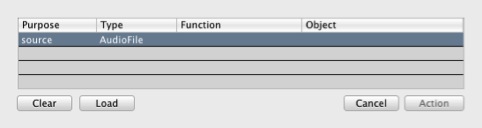
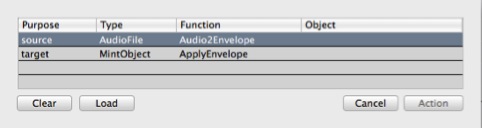
Most functions operate on objects which are handed over to them. If one starts a function, the FunctionLoader pops up. The FunctionLoader manages the ‘delivery’ of objects to functions. It contains a list of objects the function expects. Each input object is described with the expected type and the purpose of the object during the execution of the function.
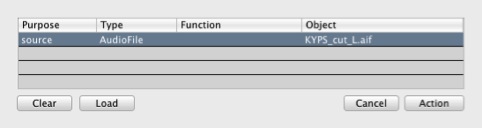
The function started in this example expects a single object of type AudioFile. It's purpose for the function is described as "source". To hand over an appropiate object to the FunctionLoader, select the object in the pool and click on "Load" in the FunctionLoader window. The object will now be handed over to the FunctionLoader and it will show up in the object list:
If all of the required objects are present, the "Action" button becomes active and the function can be executed.
Functions which expect a single input object of type QuinceObject with the purpose "source" can be started from the "Selection" menu to operate on a selection of objects in a ContainerView directly (without the FunctionLoader popping up).
Just like events can be folded into a sequence, you can combine functions into bigger objects called FunctionGraphs. You can only combine two functions at a time, but since a FunctionGraph acts just like a Function, you can combine a function with a FunctionGraph or a FunctionGraph with another FunctionGraph to create very powerful and complex tools.
Two functions get combined by linking the output of a first function to the input of a second. For two functions to be able to be combined into a FunctionGraph, the type of the output of the first function must match the type of one of the input objects of the second function.
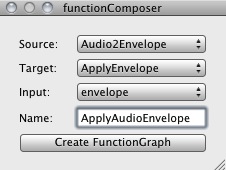
To open the FunctionComposer click on it's icon in thetoolbar.
In the FunctionComposer, choose the source and target functions. If the two functions are compatible, possible connecting objects (matching input objects of the target function) will be displayed in the third pop-up (labeled "Input"). In the example above, the function "Audio2Envelope" is being combined with the function "ApplyEnvelope".
The result of "Audio2Envelope" is an object of type Envelope. The function "ApplyEnvelope" expects an input object of type Envelope with the purpose envelope and a QuinceObject with the purpose "target". The only matching object is the envelope. In the text field you can enter the name of the resulting FunctionGraph. Click on the button labeled "Create FunctionGraph" to create the FunctionGraph. It will be added to the function table of the pool.
If the new FunctionGraph is executed, the FunctionLoader asks for two objects:
The function Audio2Envelope needs an object of type AudioFile, the function ApplyEnvelope, in addition to the envelope provided by Audio2Envelope, needs an object of type QuinceObject with the purpose "target" on which the envelope should be applied.
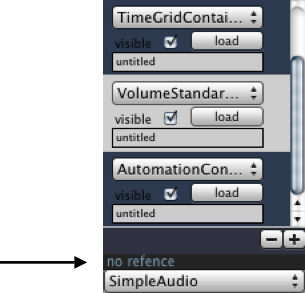
Below the StripControllers there is a small black text field. By default it contains the string "no reference".
If you load an audio file into the pool and select it, the text in the text field changes to the name of the selected audio file object.
This indicates that you now have a refence to an audio file object: SubObjects created in a ContainerView whilst having a reference to an audio file object will get an additional parameter with the identifier "MediaFileName". It's value will be the name of the selected audio file object. If the session is played back (and if an appropiate player is chosen), the subObject's refered audio file will be played. Of course you can remove the reference at any time.
You can also create an object with a reference to an audio file directly in the pool. Select the audio file object you want to create a reference for and click on "New Object For Audio File". If you now load this object into a containerView and play back the session, the refered audio file will be played only if the object contains subObjects without media (audio) file references of their own. To create such subObjects simply deselect the audio file object in the pool (if not already done) and double click in the layer containing the object with the refence to the audio file. Create a few subObjects of reasonable duration. If you now play back the session these subObjects become windows into the audio file: they inherit the audio file reference of their mother object and play it back using their own start, duration and volume parameter values.
A player is a plug-in that plays back the session. Directly beneath the text field for the media file reference display, there is a pop up for the selection of a player.
Some players will allow you to change their behaviour. Use the settings button on the right to the menu to get access to a player's settings panel.
ContainerViews are plug-ins which display objects in a layer. For information on layers and on how to load an object into a layer, please read the chapter Layers above.
There are a few commands almost all ContainerViews understand. However, whether one particular ContainerView understands these commands depends on it's implementation.
Common ContainerView Commands
Keyboard:
f / Shift + f
folds / unfolds selected subObjects.
m
mutes / unmutes selected subObjects.
SPACE
starts / stops playback.
ENTER
during playback: creates a new subObject at the current play back position.
or else: resets the cursor to 00:00:000.
TAB
selects the next subObject.
Shift + TAB
selects the previous subObject.
Mouse
Double Click
creates a new subObject.
Mouse & Keyboard
Option-Drag
duplicates the selected subObjects.
Control-Drag
changes the duration of the selected subObjects. You can also pull on the right end of ChildViews for the same result.
The AutomationContainer provides an interface for the creation and editing of automation data.
However, there is no plug-in that processes automation data. (Yet!)
The CentContainer provides an interface for the display and editing of cent deviation values of objects with frequency data.
The EnvelopeContainer plug-in displays objects of type Envelope. The resolution of the display changes with the zoom. You do not always see the same resolution, but you always see the same amount of detail (envelope frames per pixel) :
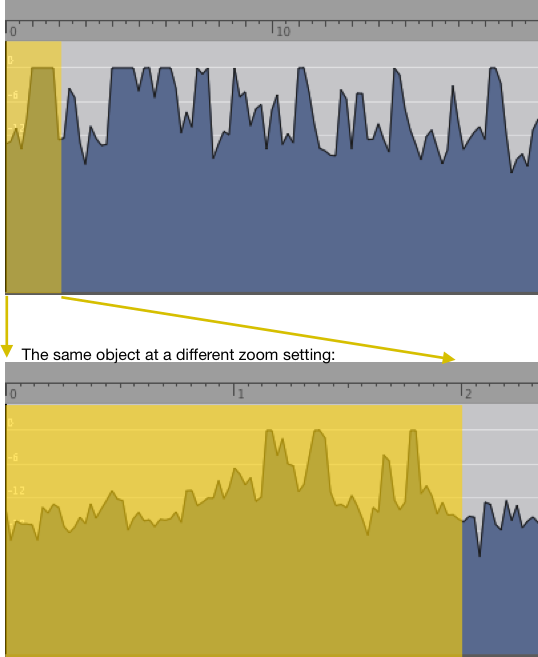 There is a function plug-in called ResampleEnvelope. Use it to limit the resolution of an envelope.
To change the display colour of an envelope, double click on the envelope. Then choose a colour in the colourpicker.
FrequencyStandardContainer
The FrequencyStandardContainer works in the same way as the VolumeStandardContainer, except that is displays frequency (linear) on its y-axis.
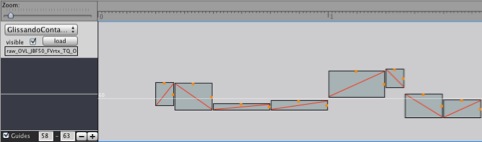
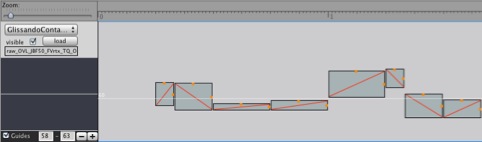
The GlissandoContainer displays objects using the GlissandoChild view:
It uses the parameter pitchF (a floating point representation of midi pitch) for the positioning of objects on its y-axis, and the parameter pitchRange for their height.
Glissandi are organized using three parameters: frequency, frequencyB and glissandoDirection. The glissandoDirection parameter determines which frequency value will be the start point and which one will serve as the end point of the glissando. However, the value of the parameter frequencyB must and will always be higher than the value of the parameter frequency. Quince will swap the frequency and frequencyB values and toggle the glissandoDirection automatically, if necessary. See the GlissandoChild reference for more information.
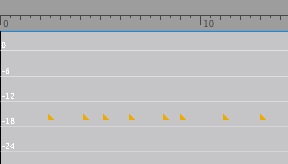
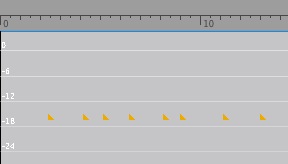
The MarkContainer provides a view for markings:
The PitchContainer works in the same way as the VolumeStandardContainer, except that is displays pitch (midi pitch, logarithmic frequency) on its y-axis.
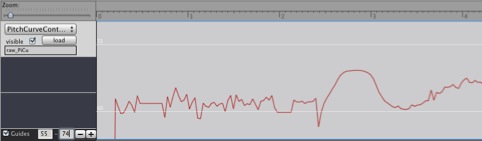
The PitchCurveContainer displays PitchCurves with the parameter pitch on the y-axis. The pitches in PitchCurves can not actually be edited using the PitchCurveContainer. Just as the EnvelopeContainer, the PitchCurveContainer was made for display only.
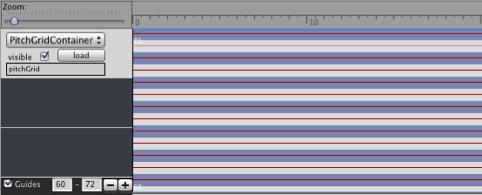
The PitchGridContainer displays Pitches of a sequences subObjects independently from their respective start and duration values, as a grid. For a more detailed explanation how GridContainerViews work in quince, please see the TimeGridContainer reference below.
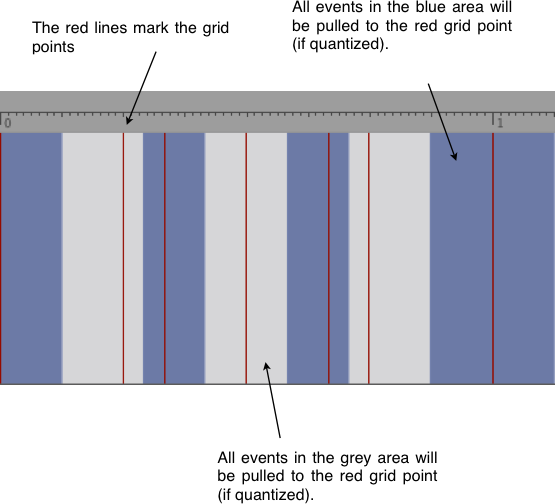
The TimeGridContainer displays sequences as a series of grid points in time (without durations). It is intended for the use in the process of quantizing sequences. (For more information on quantizing sequences please read the chapter Quantization in the Function Plug-In Reference.)
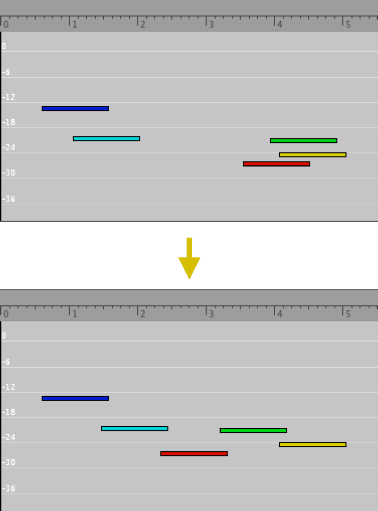
The TimeGridContainer displays the time points to which subObjects would be pulled if their surrounding sequence would be quantized using the displayed grid. In addition, it also displays the time frames from which subObjects would be pulled onto the grid points:
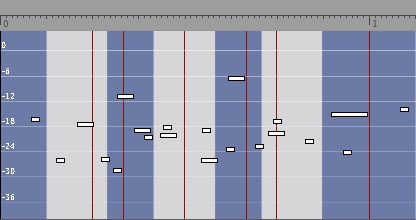
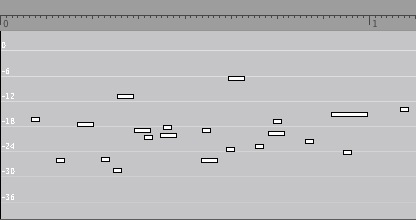
Here is another example with an additional layer of events:
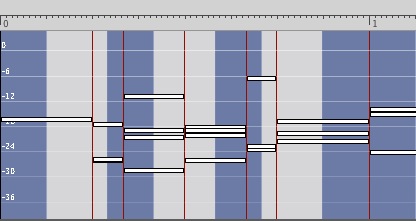
After quantization with the displayed grid, the events are pulled to the grid points. In addition their durations will have changed accordingly:
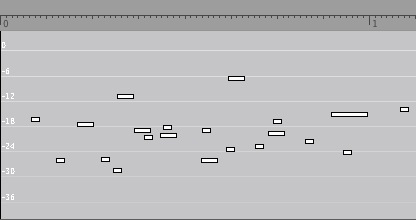
The StandardVolumeContainer is a ContainerView with basic display and editing options for events. Events (subObjects) are displayed using the SequenceChild plug-in (ChildView) which displays objects as rectangular boxes which can be moved, extended, shortened, folded and unfolded. For more information on the SequenceChild plug-in please read it's description in the ChildView reference.
For information on how to execute functions and on how to pass an object to a function, please read the chapter Functions in the introduction above.
Functions, whose output object is not explicitly specified, do not create a new object as a result of their execution.
|
|
|
|
|
|
|
|
|
The object whose subObjects should be changed.
|
Sets the parameter frequency of all subObjects of the source to the frequency value of the subObject with the lowest start value.
|
|
|
|
|
|
|
|
|
The object whose subObjects should be changed.
|
Sets the parameter volume of all subObjects of the source to the volume value of the subObject with the lowest start value.
|
|
|
|
|
|
|
|
|
The object whose subObjects should be changed.
|
|
|
|
The envelope which should be applied to the subObjects of the target.
|
Sets the parameter volume of all subObjects of the target to the value of the envelope at the time of the respective subObject's start value. It is recommended to resample the envelope before using this function. "ApplyEnvelope" performs resampling on it's own if the resolution of the envelope is higher than 5 ms per frame.
|
|
|
|
|
|
|
|
|
The object whose subObjects should be changed.
|
|
|
|
The object whose values should be applied to the target.
|
Applies values of the source's subObjects (of a parameter chosen in a dialog) to the subObjects of the target.
|
|
|
|
|
|
|
|
|
The object whose subObjects should be changed.
|
|
|
|
A DataFile object representing a text file with values to be added to the target's subObjects.
|
Interprets the contents of a text file as values for a parameter. The parameter is chosen in a dialog window. Each line in the text file is assigned to one subobject of the target as a value for the chosen parameter.
For example, if the textfile reads:
a
b
c
and you choose "name" as the parameter to assign values to and the target sequence has three subObjects, those three subobjects will be named "a", "b" and "c".
|
|
|
|
|
|
|
|
|
The AudioFile object from which the envelope should be extracted.
|
|
|
| |
|
|
| |
|
A new object with the envelope of the AudioFile object.
|
Reads the samples of the source and creates a new object of type Envelope containing the envelope of the AudioFile.
|
|
|
|
|
|
|
|
|
The object whose subObjects should be changed.
|
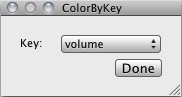
Lets the user chose a parameter:
After a choice is made, ChildViews representing the subObjects of the soure will be colored. Objects with the same values will get the same colors.
|
|
|
|
|
|
| |
|
|
|
|
| |
|
|
| |
|
A new object representing a grid for quantization.
|
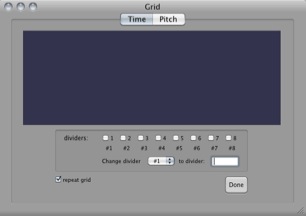
Using this function you can create a grid for quantization.
There are too tabs within this function's window: One for the creation of time grids and one for creating pitch/frequency grids.
Time
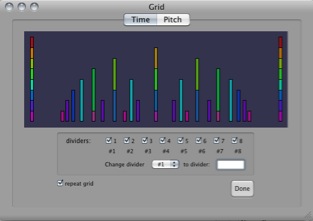
The dividers refer to seconds. Using the checkboxes you can acivate or deactivate individual dividers. The default assignement represents standard musical divisions: if one second is one quarter note, the dividers correnspond to :
1: quarter note 2: 8th 3: tripplet (8th) 4: 16th 5: quintuplet (16th) 6: 6tuplet (16th) 7: 7tuplet (16th) 8: 32th
The resulting grid is displayed using colored bars:
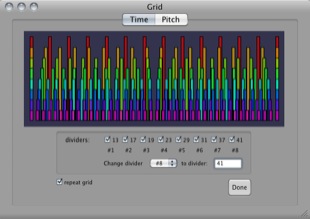
Using the popup and the text field you can change individual dividers to create more complicated grids:
Click on Done to create a sequence with the specified grid. If you check the "repeat grid" box, the new object will be slightly longer than the longest obect in the pool.
Pitch
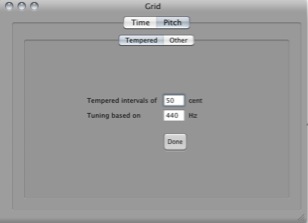
In the Pitch tab of the grid, you can create grids for the quantization of frequencies. Again there are two tabs: "Tempered" and "Other".
In the "Tempered" tab you can create grids using tempered scales of any resolution and you can specify which base frequency should be used for the grid:
|
|
|
|
|
|
|
|
|
The envelope whose values should be processed.
|
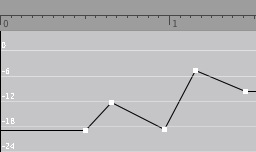
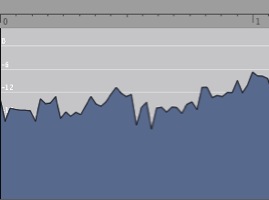
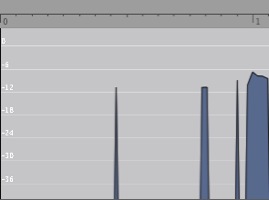
Removes all values below a threshold from the given envelope. The threshold can be specified in a dialog box.
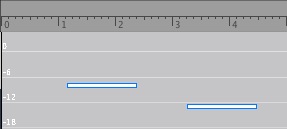
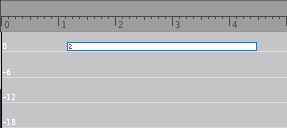
The following envelope:
limited at -12dB:
EnvToSeq
|
|
|
|
|
|
|
|
|
The envelope to be converted.
|
|
|
| |
|
|
| |
|
A new object containing subobjects for significant changes in volume of the envelope.
|
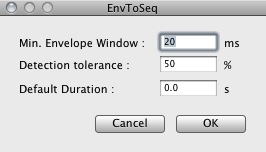
EnvToSeq creates a Sequence containing objects for transients in the envelope. Upon execution you will be presented with the following dialog window:
EnvToSeq uses internal resampling of the envelope to measure volume values. After that it compares successive frames. The tolerance actually is the inverse ratio of two successive frames. The default duration is the duration of the newly created objects.
|
|
|
|
|
|
|
|
|
The object whose subObjects should be changed.
|
Creates an equal distribution of the subObjects of the source over the parameter frequency
|
|
|
|
|
|
|
|
|
The object whose subObjects should be changed.
|
Creates an equal distribution of the subObjects of the source over the parameter pitch.
|
|
|
|
|
|
|
|
|
The object whose subObjects should be changed.
|
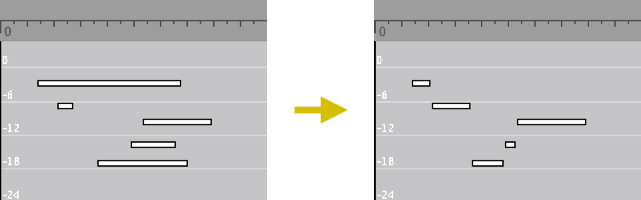
Creates an equal distribution of the subObjects of the source over the parameter start:
|
|
|
|
|
|
|
|
|
The object whose subObjects should be changed.
|
Creates an equal distribution of the subObjects of the source over the parameter volume:
|
|
|
|
|
|
|
|
|
The object whose subobject's descriptions are to be exported.
|
|
|
| |
|
|
| |
|
A Text File containing a list of all the descriptions of the source's subobjects
|
Creates a text file containing all the descriptions of the source's sobobjects.
|
|
|
|
|
|
|
|
|
The object whose subObjects are to be analyzed.
|
|
|
| |
|
|
| |
|
A new Sequence containing subObjects representing the volume envelope of the source.
|
Creates a new sequence representing the volume envelope of the source. This will result in data reduction whenever there are multiple simultaneous objects in the source.
|
|
|
|
|
|
|
|
|
The object whose subObjects are to be analyzed.
|
|
|
| |
|
|
| |
|
A new Sequence containing subObjects representing frequency vertexes of the source.
|
Creates a new sequence with subObjects for each frequency vertex (change in frequency direction) in the source.
|
|
|
|
|
|
|
|
|
The object whose subObjects should be changed.
|
Sets the glissando end frequencies of the subobjects of the source (values of the parameter frequency or frequencyB)2 to the glissando start frequencies of the respective next subObject.
|
|
|
|
|
|
|
|
|
The object whose subObjects should be changed.
|
Sets the glissando start frequencies of the subobjects of the source (values of the parameter frequency or frequencyB)2 to the glissando end frequencies of the respective previous subObject.
FoldByParameter
|
|
|
|
|
|
|
|
|
The object to be processed.
|
Folds subobjects of the source object if they share the same value for a parameter chosen in a dialog window.
|
|
|
|
|
|
|
|
|
The object to be processed.
|
|
|
| |
|
|
| |
|
A new object containing copies of the subobjects of the source whose volume values are above a threshold.
|
Creates a copy of an object and removes all subobjects whose volume values are below a threshold.
|
|
|
|
|
|
| |
|
|
|
|
| |
|
|
| |
|
A new object with frequency data from a data file.
|
Asks for a file with frequency values and creates a new object with subObjects for the frequency values.
understands two file formats:
Spear: Text "Resampled Frames"
Praat: Text Formants in "TextFile"
ImportMaxMSPCollForSingleParameter
|
|
|
|
|
|
| |
|
|
|
|
| |
|
|
| |
|
A new object containing subobjects for significant changes in volume of the envelope.
|
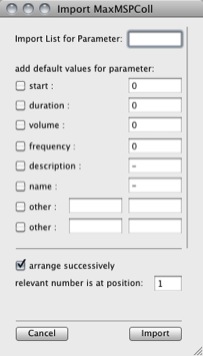
Creates a new object containing subobjects with values from a MaxMSP coll file and default values specified in the following dialog:
|
|
|
|
|
|
|
|
|
The object whose subobject are to be joined.
|
|
|
| |
|
|
| |
|
A copy of the source whose subobjects are joined if successive object's frequencies are equal or within a given tolerance.
|
|
|
|
|
|
|
|
|
|
The object whose subObjects should be changed.
|
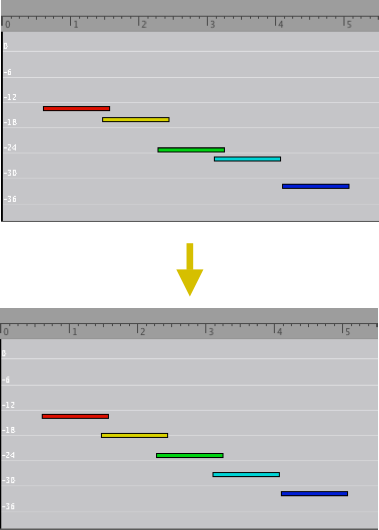
Extends or shortenes the durations of the source's subObjects so that they follow up on each other without any gaps:
Exports the source as a source file for the LilyPond notation program (http://lilypond.org/). Each subObject of the source becomes one note. In a dialog box you can specify which parameters should be included in the code.
|
|
|
|
|
|
|
|
|
The object whose subObjects should be changed.
|
Adds dynamik expressions to subobjects of the source by choosing volume ranges. The LilyPondExport plug-in understands these expressions and can include them in the lilypond source.
|
|
|
|
|
|
|
|
|
The object whose subObjects should be changed.
|
Normalizes the volume values of the source's subObjects, so that the subObject with the highest volume has the value 0dB.
|
|
|
|
|
|
|
|
|
|
|
|
| |
|
|
| |
|
A new object with copies of the loudest subobjects of the source that are not overlapping.
|
Creates a filtered version of the source, containing subobjects that are not overlapping. The subobjects are chosen by comparison of their volume values.
|
|
|
|
|
|
|
|
|
The grid on which the victim should be quantized.
|
|
|
|
The object whose subObject should be quantized.
|
Quantizes the victim onto the grid. PitchQuantization quantizes Frequency, Pitch and Cent values.
The frequency values of the subObjects of the victim are being pulled onto the frequency values of the subObjects of the grid.
See: PitchQuantization or TimeQuantization
|
|
|
|
|
|
|
|
|
The object whose subObjects should be changed.
|
Removes the selected parameter from all subObjects of the source and from the source itself.
|
|
|
|
|
|
|
|
|
The envelope whose resolution is to be limited.
|
In a dialog box you can specify a window duration (in milliseconds) to limit the envelope's resolution.
|
|
|
|
|
|
|
|
|
The object to transform into a PitchCurve
|
|
|
| |
|
|
| |
|
The corresponding PitchCurve
|
Reads the sources frequency values and creates a PitchCurve (pitch envelope, see PitchCurve documentation for details) that can be displayed using the PitchCurveContainer. When multiple frequency values are present (multiple subObject with frequency values) at a given point in time, Seq2PitchCurve will choose the highest frequency value for the PitchCurve.
Sets a given parameter of the source and optionally it's subobjects to a given value.
|
|
|
|
|
|
|
|
|
The minuend of the operation. (a)
|
|
|
|
The substrahend of the operation. (b)
|
|
|
| |
|
|
| |
|
A new object with the result of the operation.
|
An implementation of the set difference operation or the relative complement
minuend - substrahend or a \ b
|
|
|
|
|
|
|
|
|
|
|
|
|
the other set of the operation
|
|
|
| |
|
|
| |
|
A new object with the result of the operation.
|
An implementation of the set intersection operation a ∩ b
|
|
|
|
|
|
|
|
|
|
|
|
|
the other set of the operation
|
|
|
| |
|
|
| |
|
A new object with the result of the operation.
|
An implementation of the set symmetric difference operation
a ∆ b = (a \ b) ∪ (b \ a) = (a ∪ b) \ (a ∩ b)
|
|
|
|
|
|
|
|
|
|
|
|
|
the other set of the operation
|
|
|
| |
|
|
| |
|
A new object with all subobjects of both input objects.
|
An implementation of the set union operation a ∪ b .
|
|
|
|
|
|
|
|
|
|
|
|
|
the other set of the operation
|
|
|
| |
|
|
| |
|
A new object with all subobjects of both input objects, but guaranteed to be without duplicates.
|
An implementation of the set union operation a ∪ b, without duplicates.
|
|
|
|
|
|
|
|
|
|
|
|
| |
|
|
| |
|
A new object with the start and duration values of its subobjects adjusted to the new tempo.
|
|
|
|
|
|
|
|
|
|
The grid on which the victim should be quantized.
|
|
|
|
The object whose subObject should be quantized.
|
Quantizes the victim onto the grid. (Currently Quantization only quantizes start and duration values. A more flexible version of Quantization will be released in the future.)
The start values of the subObjects of the victim are being pulled onto the start values of the subObjects of the grid.
The durations of the subObjects of the victim will be changed, so that they match the time between two subObjects in the grid.
Transposes the subobjects of the source object by a given interval or factor. Frequency, Pitch and Cent values will be affected.
The SequenceChild is the ChildView plug-in used by the CentContainer, the FrequencyStandardContainer, the PitchContainer and the VolumeStandardContainer. It displays objects as two-dimensional boxes with a frame:
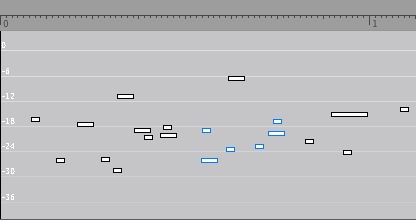
Selected objects are indicated by a colored frame:
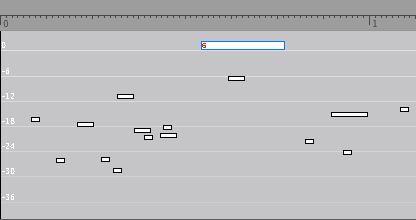
Folded objects are represented using slightly higher boxes. The red number on the left indicates the number of subObjects in the object.
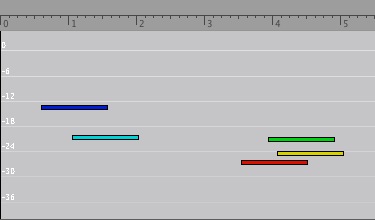
Using the function ColorByKey SequenceChild objects can be colored corresponding to a parameter of their represented objects:
The AutomationChild is the ChildView used by the AutomationContainer. It displays objects as two-dimensional boxes without a frame. The width of the AutomationChild objects is not variable, they always have the same size.
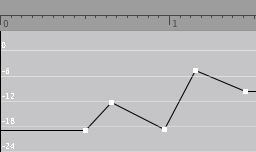
The GlissandoChild is used by the GlissandoContainer. It displays objects as rectangular boxes with flexible width and height, representing duration and pitchRange values. Using the orange handles you can change the dimensions of the objects. The red lines in the boxes represent the direction of the glissando. To change the glissando direction command-click on the box. Glissandi are organized using three parameters: frequency, frequencyB and glissandoDirection. The glissandoDirection parameter determines which frequency value will be the start point and which one will serve as the end point of the glissando. However, the value of the parameter frequencyB must and will always be higher than the value of the parameter frequency. Quince will swap the frequency and frequencyB values and toggle the glissandoDirection automatically, if necessary.
The AutomationChild is used by the MarkContainer. It displays objects as yellow triangles.
Players
Players will play only the visible objects of the currect session (if they support playback).
Searches for references to AudioFile objects and plays a QuinceObjects's corresponding audio file. Please read the chapter AudioFiles above for more information on audio file references.
The parameters used for referencing to AudioFiles by the AudioFilePlayer are mediaFileName and mediaFileStart (optional).
The CsoundPlayer uses an actual instance of Csound3 to render the visible sequences in realtime. You do not need to have Csound installed on your system in order for the CsoundPlayer to work. Csound is built right into this player.
In the settings window you can edit the .sco and .orc files.
In the score, all parameters which playable objects (objects visible in the project window that support playback) have in common are listed. Thus, it may be necessary to create "dummy" parameters in some objects to get all information you need printed into the score.
You also may have to change the p-field references in the orc file to match the order in the score.
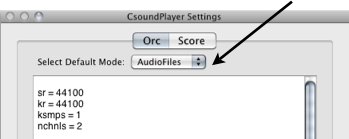
The instrument used to synthesize sequences is chosen in a drop down menu in the player's settings window:
It is possible though, to overwrite this default synthesis method for individual objects of the session. Use the parameter csoundMode to "hard-wire" a synthesis method for an object. Possible values are: "AudioFiles", "Clicks", "Glissando" and "Pitches". This list is likely to be extended in the future when more built-in modes are required.
Of course, custom csound instruments can be added to the orc, too. To make the CsoundPlayer play an object with a custom instrument, use the parameter csoundInstrumentNumber with the respective number as its value.
Developing Plug-Ins for quince
Plug-Ins for quince are written in Objective-C using the Cocoa and quince APIs. In order to create a new Plug-In you have to subclass one of the quince Plug-In classes. The API is written in such a way that by subclassing a Plug-In class, you already have a fully functioning Plug-In. You only have to implement methods and functionality that deviates from the default implementations.
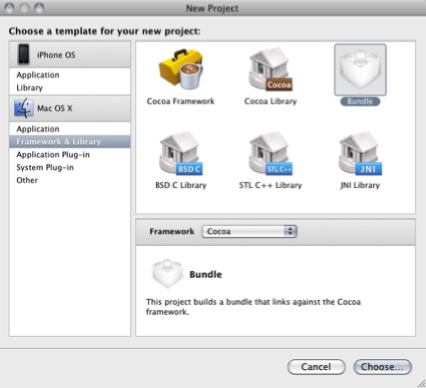
The designated XCode project template is "Bundle". In the New Project Dialog choose Mac OS X:Frameworks & Library:Bundle (Cocoa).
In the target settings you will have to change the target identifier (in the properties tab).
For a FunctionPlug-In the identifier should be:
QuinceFunctionBundle
For a ContainerView Plug-In the identifier should be:
QuinceContainerViewBundle
For a ChildView Plug-In the identifier should be:
QuinceChildViewBundle
And for a Player Plug-In the identifier should be:
QuincePlayerBundle
There are a few basic things you need to be aware of when developing Plug-Ins for quince:
• You will have to link against the QuinceApi.framework. After installing quince, it is stored in /Library/Frameworks/QuinceApi.framework .
• All the quince-API classes are fully KVC compliant. If you don't know what KVC means, please have a look at the "Key-Value Coding Programming Guide" that comes with the Apple Developer Documentation. You shouldn't need to create any instance variables or properties in your subclass. Instead I recommend the use of the KVC methods of the respective quince-API class.
• quince Plug-Ins have to be stored in /Library/Application Support/quince/ . If you store your custom Plug-Ins in any other place, quince will not be able to find them.
For creating a FunctionPlug-In you have to subclass Function.
Typically your header file would look something like this:
#import <Cocoa/Cocoa.h>
#import <QuinceApi/Function.h>
#import <QuinceApi/QuinceObject.h>
@interface myQuinceFunctionPlugIn : Function {
}
//...
@end
There is only very little you have to do to create a simple FunctionPlug-In for quince.
Here is the complete code of the Normalize FunctionPlug-In:
@implementation Normalize
-(void)perform{
double max=-666, candidate, vol;
QuinceObject * mother = [self objectForPurpose:@"source"];
for(QuinceObject * quince in [mother valueForKey:@"subObjects"]){
candidate = [[quince valueForKey:@"volume"]doubleValue];
if(candidate > max) max = candidate;
}
for(QuinceObject * quince in [mother valueForKey:@"subObjects"]){
vol = [[quince valueForKey:@"volume"]doubleValue] - max;
[quince setValue: [NSNumber numberWithDouble:vol]
forKey:@"volume"];
}
[self setOutputObjectToObjectWithPurpose:@"source"];
[self done];
}
@end
That's it! Now let's discuss the code in detail...
For a simple Function like Normalize there is only one method you have to override: perform.
First of all we declare three variables, max, candidate and vol to determine the peak volume values and to compute the new volume values.
double max=-666, candidate, vol;
Now we need data to operate on. A FunctionPlug-In does not necessarily need input objects. However, if it does, the objects selected by the user can be accessed using the objectForPurpose: method of the Function class.
The input objects of a FunctionPlug-In are described with a type and a purpose (see the documentation of the inputDescriptors method in the API reference below). Function, by default, expects a single input object of type QuinceObject with it's purpose set to source. The Normalize Function is going to normalize the SubObjects of one single object, so the default is sufficient. To get the object to operate on, we call the objectForPurpose: method with the purpose source.
QuinceObject * mother = [self objectForPurpose:@"source"];
Now we have to determine the peak volume, so we step through the mother's subObjects and look for the highest volume value.
for(QuinceObject * quince in [mother valueForKey:@"subObjects"]){
candidate = [[quince valueForKey:@"volume"]doubleValue];
if(candidate > max) max = candidate;
}
Now that we have our maximum, we need to change all the subObject's volume values accordingly. In quince, the parameter volume is specified in dB. Since the peak volume we want our object to have after the normalization process is 0dB, we can simply substract the current maximum value from each subObject's volume value.
for(QuinceObject * quince in [mother valueForKey:@"subObjects"]){
vol = [[quince valueForKey:@"volume"]doubleValue] - max;
[quince setValue: [NSNumber numberWithDouble:vol] forKey:@"volume"];
}
We're almost done. Since we did not create a new output object, we now have to make sure that the object we operated on is turned into the output object of our function.
[self setOutputObjectToObjectWithPurpose:@"source"];
Now we are done. And to tell quince, we call done :
[self done];
If you are creating a more complex FunctionPlug-In, you might need to call a few other methods. See the Function API reference for a description of the public Function methods.
Not all of the class's methods are covered in the API Reference. If you need something that is not documented here, you should double check if you really are on the right track.
If you are sure that you are, however, you should have a look at the respective header file (the header files are stored in /Library/Frameworks/QuinceApi/headers/)
-(void)perform;
Has to be overridden by subclasses, performs the actual task.
-(NSMutableArray *)inputDescriptors;
Should return an array with one NSDictionary object for each input object needed for the function to operate.
Each dictionary should contain one string describing the purpose of the input object for the key: purpose (e.g. grid in case of a quantization function) and one string with the type of the input object for the key: type (e.g. QuinceObject).
The default implementation has one input of type QuinceObject for the purpose source.
The function ApplyEnvelope expects an Object of type Envelope for the purpose envelope and a QuinceObject with the purpose target. Its inputDescriptors method looks like this:
-(NSMutableArray *)inputDescriptors{
NSMutableDictionary * dictA = [[NSMutableDictionary
alloc]init];
[dictA setValue:@"target" forKey:@"purpose"];
[dictA setValue:@"QuinceObject" forKey:@"type"];
NSMutableDictionary * dictB = [[NSMutableDictionary
alloc]init];
[dictB setValue:@"envelope" forKey:@"purpose"];
[dictB setValue:@"Envelope" forKey:@"type"];
NSMutableArray * ipd = [[NSMutableArray alloc]
initWithObjects:dictA, dictB, nil];
[dictA release];
[dictB release];
return [ipd autorelease];
}
-(QuinceObject *)outputObjectOfType:(NSString *)type;
Call this method if you need to create a new Object as a result of your function. In some situations quince will supply a Function with an object to use as the output object. Using this method, you will get the designated result object or a new empty object of the specified type if there was no result object given to your function.
-(NSString *)outputType;
If your function creates a new object as a result, which is not of type QuinceObject you have to override this method to return the appropriate type as a String (e.g. @"Envelope").
-(BOOL)needsInput;
If your function creates a new object and does not need any input objects, override this method to return NO. The default is YES
-(QuinceObject *)objectForPurpose:(NSString *)purpose;
Call this method to get an object serving your function as input for a specific purpose as defined by the inputDescriptors
-(void)setOutputObjectToObjectWithPurpose:(NSString *)purpose;
If your function does NOT create a new output object, but operates on a given object directly, call this method from your perform method with the purpose-key identifying the object you operate on. (see the Normalize example above)
-(void)done;
You need to call this method when you are done processing your task!
-(id)valueForKey:(NSString *)key;
-(void)setValue:(id)value forKey:(NSString *)key;
KVC methods. Use these in case you need to keep track of any objects. If you don't know what KVC means, please have a look at the "Key-Value Coding Programming Guide" that comes with the Apple Developer Documentation.
-(void)drawRect:(NSRect)rect;
Override this method to perform custom drawing. Call [super drawRect:rect] if you want to include default behaviour.
-(id)valueForKey:(NSString *)key;
-(void)setValue:(id)value forKey:(NSString *)key;
KVC methods. If you don't know what KVC means, please have a look at the "Key-Value Coding Programming Guide" that comes with the Apple Developer Documentation.
-(id)initWithFrame:(NSRect)frame;
Override this method to perform custom initialitzation. However, do not forget to call [super initWithFrame:frame] at the beginning!
-(void)mouseDown:(NSEvent *)event;
Override this method to react to custom mouse events. If you want to include standard mouse behaviour, you have to call [super mouseDown: event] at the beginning of your method.
-(void) insertText:(NSString *)string;
If your ContainerView Plug-In should react to custom keyboard events, override this method. If you want to include standard keyboard behaviour, you have to call
[super insertText: string] in your method.
-(NSString *)parameterOnY;
Override this method to specify what parameter the receiver is representing on the y-axis. The default return value is "volume".
-(BOOL)allowsVerticalDrag;
Returns a boolean indicating wether the receiver allows vertical dragging of ChildViews. The default is YES.
-(BOOL)allowsHorizontalDrag;
Returns a boolean indicating whether the receiver allows horizontal dragging of ChildViews. The default is YES.
-(BOOL)showGuides;
Returns a boolean indicating wether the receiver should show any guide lines (if possible). The default is YES.
-(BOOL)allowsNewSubObjectsToRepresentAudioFiles;
Returns a boolean indicating whether the receiver allows subObjects created from within the receiver to have a reference to an AudioFile. The default is NO.
-(ChildView *)childViewForPoint:(NSPoint)point;
Returns the ChildView whose frame surrounds the given point.
-(NSArray *)types;
Override this method if your ContainerView Plug-In should only be able to display a special selection of object types. The default return value is an array containing @"QuinceObject".
-(NSString *)defaultChildViewClassName;
Returns a string specifying the type of ChildView the receiver uses to represent subObjects of the represented object. The default return value is SequenceChild.
-(NSString *)defaultObjectClassName;
Returns a string specifying the type of object the receiver creates as subObjects of the represented object. The default return value is QuinceObject.
-(NSPoint)convertPoint:(NSPoint)clickLocation
toChildView: (id)childView;
Returns an NSPoint struct specifying the given clickLocation relative to the coordinate system of the given ChildView.
-(void)clear;
Removes the object currently displayed from the receiver.
-(ChildView *) createChildViewForQuinceObjectController:
(QuinceObjectController *)mc;
Creates and returns a new ChildView object of the type specified in the
defaultChildViewClassName method.
-(ChildView *)childViewWithController:(QuinceObjectController *)mc;
Returns the ChildView that is controlled by the given controller, if it exists. Returns nil otherwise.
-(NSArray *) childViewsInRect:(NSRect) rect;
Returns an array with all the ChildViews whose frames intersect with the given rectangle.
-(NSMutableDictionary *)dictionary;
Returns the receiver's internal NSDictionary object.
-(void)selectChildView:(ChildView *)childView;
Selects the given ChildView.
-(void)deselectChild:(ChildView* )child;
Deselects the given CildView if it is selected.
-(void)deselectAllChildViews;
Deselects all selected ChildViews if there are any.
-(void)selectChildViews:(NSArray *)someChildViews;
Selects all ChildViews contained in the given array.
-(void)selectAllChildViews;
Selects all of the receiver's ChildViews.
-(NSMutableArray *)childViews;
Returns an array containg all the receiver's ChildViews.
-(NSRect)unionRectForArrayOfChildViews:(NSArray *)views;
Creates and returns a NSRect struct specifying the rectangle surrounding the ChildViews contained in the given array. Returns NSZeroRect if the array is empty.
-(NSRect) unionRectForSelection;
Creates and returns a NSRect struct specifying the rectangle surrounding the receiver's selected ChildViews. Returns NSZeroRect if there is no selection.
-(BOOL)allowsHorizontalResize;
Returns a bollean indicating whether the receiver allows horizontal resizing of ChildViews. The default value is YES.
-(BOOL)allowsVerticalResize;
Returns a bollean indicating whether the receiver allows vertical resizing of ChildViews. The default value is NO.
-(void)duplicateSelection;
Creates duplicates of the selected objects, deselects the selected objects and selects the duplicates.
-(NSArray *)selection;
Returns an array containg the receiver's currently selected ChldViews.
-(void)removeChildViews:(NSArray *)obsoleteChildViews;
Override this method to perform custom actions when removing ChildViews from the receiver.
-(void)sortChildViewsLeft2Right;
Sorts the receiver's internal ChildViews array by position from left to right.
-(void)scaleByX:(float)diffX andY:(float)diffY;
Override this method to scale any custom content of your view.
-(void)updateViewsForCurrentSize;
Override this method to provide different display resolutions depending on the current zoom setting.
-(void)presentAlertWithText:(NSString *)message;
Creates and displays an alert panel with the given error message.
-(NSString *)keyForLocationOnXAxis;
Returns a string with the key (description) of the receiver's parameter represented by a ChildView's position on the receiver's y-axis. The default is start. Should not be changed.
-(NSString *)keyForLocationOnYAxis;
Returns a string with the key (description) of the receiver's parameter represented by a ChildView's position on the receiver's y-axis. The default is volume.
-(NSString *)keyForSizeOnXAxis;
Returns a string with the key (description) of the receiver's parameter represented by a ChildView's width. The default is duration. Should not be changed.
-(NSString *)keyForSizeOnYAxis;
Returns a string with the key (description) of the receiver's parameter represented by a ChildView's height. The default is nil.
-(NSNumber *)convertXToTime:(NSNumber *)x;
Returns the time value of the given x-coordinate-value in the receiver's coordinate system.
-(NSNumber *)convertTimeToX:(NSNumber *)time;
Returns the x-coordinate-value of the receiver's coordinate system for the given time value.
-(NSNumber *)convertYToVolume:(NSNumber *)y;
Returns the volume value (in dB) of the given y-coordinate-value in the receiever's coordinate system.
-(NSNumber *)convertVolumeToY:(NSNumber *)dB;
Returns the y-coordinate-value of the receiver's coordinate system for the given volume (dB) value.
-(NSNumber *)convertVolumeToYDelta:(NSNumber *)dB;
Returns the position difference on the receiver's y-axis for the given volume change.
-(NSNumber *)parameterValueForX:(NSNumber *)x;
Returns the receiver's value of the parameter represented on the receiver's x-axis corresponding to the given x coordinate value. Equivalent to convertXToTime: .
-(NSNumber *)parameterValueForY:(NSNumber *)y;
Returns the receiver's value of the parameter represented on the receiver's y-axis corresponding to the given y coordinate value. Calls convertYToVolume: by default.
-(NSNumber *)xForParameterValue:(NSNumber *)p;
Returns the receiver's x-coordinate-value for the given value of the receiver's parameter represented on it's x-axis. Equivalent to convertTimeToX: .
-(NSNumber *)yForParameterValue:(NSNumber *)p;
Returns the receiver's y-coordinate-value for the given value of the receiver's parameter represented on it's y-axis. Calls convertVolumeToY: by default.
-(NSNumber *)xDeltaForParameterValue:(NSNumber *)p;
Returns the position difference on the receiver's x-axis for the given value of the parameter represented on the receiver's x-axis. Equivalent to convertTimeToX: .
-(NSNumber *)yDeltaForParameterValue:(NSNumber *)p;
Returns the position difference on the receiver's y-axis for the given value of the parameter represented on the receiver's y-axis. Calls convertVolumeToYDelta: by default.
-(NSRect) rect;
Returns an NSRect struct containing the receiver's surrounding rectangle;
-(NSRect) redrawRect;
Returns an NSRect struct containing a rectangle that is two pixels larger on every side than the rectangle returned by the rect method.
-(void) setLocation:(NSPoint)point;
Sets the receiver's location to the given point in the coordinate system of the enclosing ContainerView.
-(NSPoint) location;
Returns the receiver's location in the coordinate system of the enclosing ContainerView.
-(void) setFrameColor:(NSColor *)c;
A convenience method. Actually calls setValue: forKey: .
-(NSColor *)frameColor;
A convenience method. Actually calls valueForKey: .
-(void) setInteriorColor:(NSColor *)c;
A convenience method. Actually calls setValue: forKey: .
-(NSColor *)interiorColor;
A convenience method. Actually calls valueForKey:.
-(void)setSelectionColor:(NSColor *)color;
A convenience method. Actually calls setValue: forKey: .
-(NSColor *)selectionColor;
A convenience method. Actually calls valueForKey.
-(id)valueForKey:(NSString *)key;
-(void)setValue:(id)value forKey:(NSString *)key;
KVC methods. If you don't know what KVC means, please have a look at the "Key-Value Coding Programming Guide" that comes with the Apple Developer Documentation.
-(int)minimumWidth;
Override this method to return a different minimum width.
-(int)minimumHeight;
Override this method to return a different minimum height.
-(int)maximumWidth;
Override this method to return a different maximum width.
-(int)maximumHeight;
Override this method to return a different maximum height.
-(NSRect) resizeXCursorRect;
The resizeXCursorRect describes the rectangle in which the mouse pointer is changed to the resize cursor.
-(float) height;
Returns the receiver's frame's height.
-(float) width;
Returns the receiver's frame's width.
-(NSSize) size;
Returns a NSSize struct containing the receiver's size.
-(void) setHeight:(float)h withUpdate:(BOOL)b;
Sets the receiver's frame's height to the given value. If b is YES the new height is being communicated to the represented object resulting in a value change of the parameter represented on the enclosing view's y-axis.
-(void) setWidth:(float)w withUpdate:(BOOL)b;
Sets the receiver's frame's width to the given value. If b is YES the new width is being communicated to the represented object resulting in a value change of the parameter represented on the enclosing view's y-axis.
-(float) foldedItemHeight;
ChildViews representing QuinceObjects that contain subObjects can be drawn with a different height. Override this method to specify the default height for the representation of folded QuinceObjects.
-(ContainerView *)enclosingView;
Returns the ContainerView that the receiver is a subView of.
-(void) draw;
Performs the drawing of the receiver.
-(void) moveX:(float)x;
Shifts the x-value of the receiver's location by the given value.
-(void) moveY:(float)y;
Shifts the y-value of the receiver's location by the given value.
-(void)select;
Marks the receiver as selected. Results in the receiver's frame being drawn in the selectionColor.
-(void)deselect;
Marks the receiver as not selected. Results in the receiver's frame being drawn in the default frameColor.
-(BOOL)selected;
Returns a boolean indicating whether the receiver is marked as selected or not.
-(void)resize:(NSValue *)deltaValue;
Resizes the receiver's frame by the width and height values in the given NSValue object which is expected to contain a NSSize struct.
-(void)scaleByFactorsInSize:(NSValue*)val;
Scales the receiver's width and height by the factor in the given NSValue object which is expected to contain a NSSize struct.
-(void)scaleX:(float)x;
Scales the receiver's width by the given factor.
-(void)scaleY:(float)y;
Scales the receiver's height by the given factor.
-(BOOL)allowsHorizontalResize;
Returns a boolean indicating whether the receiver allows horizontal resizing. The default is YES.
-(BOOL)allowsVerticalResize;
Returns a boolean indicating whether the receiver allows vertical resizing. The default is NO.
-(NSPoint)center;
Returns the center point of the receiver's frame.
-(QuinceObjectController *)controller;
Returns the QuinceObjectController controlling the QuinceObject represented by the receiver.
-(void)setVisible:(NSNumber *)v;
If the NSNumber object contains a non-zero value, the receiver is visible. Otherwise the the receiver will be hidden.
The Player class creates a MusicSequence which is played by a MusicPlayer during playback. You can override the createEventForQuince: method if you want to perform custom actions or implement special cases for creating an event in the MusicSequence.
However, in order to create a Quince Player Plug-In you only need to override one single method: playQuince:.
This method will be called for every QuinceObject your player should play.
-(OSStatus)createEventForQuince:(QuinceObject *)quince inTrack: (MusicTrack)track;
Override this method to implement custom behaviour during the creation of events in a Track of a MusicSequence.
-(void)checkQuince:(QuinceObject *)quince;
If the playback startTime is between the start and end of a QuinceObject, this method changes the start and startOffset values accordingly.
-(BOOL)isPlaying;
Return a boolean indicating whether the player is currently playing or not.
-(MusicSequence)sequence;
Returns the MusicSequence object used to play the session.
-(MusicPlayer)player;
Returns the MusicPlayer object used to play the MusicSequence representing the session.
-(void)play;
Starts playback.
-(void)stop;
Stops playback.
-(void)getSampleTimeBase;
Stores the current sampleTimeBase in the instance variable sampleTimeBase as a Float64. You will need it if you want to set up a timestamp when playing quince object using an AudioQueue:
AudioTimeStamp time;
double relativeStartTime =
[[quince valueForKey: @"start"] doubleValue]
- [[self startTime] doubleValue];
time.mFlags = kAudioTimeStampSampleTimeValid;
time.mSampleTime = relativeStartTime *44100 + sampleTimeBase + 1000;
err = AudioQueueStart ( aqData.mQueue, &time );
You could call AudioQueueStart() passing NULL instead of an AudioTimeStamp to tell the system to commence playback of the queue as soon as possible. That however, would result in considerable drops in playback quality. Using an AudioTimeStamp in the way shown above (including a small offset!) will result in sample accurate playback.
-(void)playQuince:(QuinceObject *)quince;
The method actually playing a QuinceObject. This is where you implement your playback algorithms.
@property (assign) QuinceDocument * document;
You can access the QuinceDocument holding the session using this property.
@property (retain) NSNumber * startTime;
The time when playback is to start.
-(QuinceObjectController *)controller;
Returns the receiver's controller object.
-(QuinceDocument *)document;
Returns the QuinceDocument object the receiver is a part of.
-(long)subObjectsCount;
Returns the number of subObjects stored in the receiver.
-(NSString *)type;
Returns a String describing the receiver's type.
-(NSString *)getSuperType;
Returns a String describing the type of the receiver's superObject. If the receiver does not have a superObject, this method returns the receiver's type instead.
-(NSNumber *)end;
Returns the receiver's end time in seconds.
-(QuinceObject *)mediaFile;
Returns the mediaFile object the receiver is associated with. If the receiver does not have a reference to a mediaFile nil is returned instead.
-(NSNumber *)mediaFileStart;
The start time (in seconds) of the associated mediaFile at which playback is to start when playing back the receiver.
-(NSArray *)allKeys;
Returns an array containing all keys of the receiver's internal dictionary.
-(NSArray *)subObjectKeys;
Returns an array containing all keys of the receiver's subobjects' dictionaries.
-(NSArray *)allKeysRecursively;
Returns an array containing all keys of the receiver and its subobjects' dictionaries as well as their subobjects' dictionaries etc…
-(NSMutableDictionary *)xmlDictionary;
Returns a dictionary which is compatible with the xml format of the NSDictionary class. The returned object contains all key - value - pairs which would be stored to disc as part of the document.
-(QuinceObject *)superObject;
Returns the receivers superObject, if it has one. Returns nil otherwise.
-(BOOL)isFolded;
Returns YES if the receiver has any subObjects. Returns NO otherwise.
-(BOOL)isChild;
Returns YES if the receiver has a superObject. Returns NO otherwise.
-(NSNumber *)duration;
Convenience method. Returns the receiver's value for the key duration.
-(NSNumber*) amplitude;
Returns a linear amplitude value of the receiver's volume (dB) value (0-1).
-(void)setValue:(id)aValue forKey:(NSString *)aKey;
-(id)valueForKey:(NSString *)key;
-(void)removeObjectForKey:(NSString *)key;
KVC methods. If you don't know what KVC means, please have a look at the "Key-Value Coding Programming Guide" that comes with the Apple Developer Documentation.
See Appendix XYC for a list of standard keys.
-(void)recursivelyRemoveObjectForKey:(NSString *)key;
Removes the given key-value-pair from the receiver, from all of it's subObjects, their subObjects etc...
-(QuinceObject *)objectWithValue:(id)value forKey:(NSString *)key;
Returns the receiver or one of it's subObjects if it matches the given key-value-pair. If no such subObject is found, nil is returned instead.
-(NSArray *)subObjectsAtTime:(NSNumber *)time;
Returns an array containing all the receiver's subObjects whose start points are before the given time and whose end points are after that point.
-(NSArray *)frequencyValuesForTime:(NSNumber *)time;
Returns an array containing all the receiver's subObject's frequency values at the given time.
-(NSArray *)amplitudeValuesForTime:(NSNumber *)time;
Returns an array containing all the receiver's subObject's linear amplitude values at the given time.
-(NSArray *)volumeValuesForTime:(NSNumber *)time;
Returns an array containing all the receiver's subObject's volume (dB) values at the given time.
-(NSNumber *)mostIntenseFrequencyForTime:(NSNumber *)time;
Returns the frequency value of the receiver's subObject with the highest volume value at the given time. Returns nil if there is subObject for the given time.
-(NSArray *)valuesForKey:(NSString *)key forTime:(NSNumber *)time;
Returns an array containing all the receiver's subObject's values for the given key at the given time.
-(void)sortByKey:(NSString *)key ascending:(BOOL)asc;
Sorts the receiver's subObjects array by the given key and order.
-(void)sortChronologically;
Convenience method. Sorts the receiver's subObjects array by the key start in ascending order.
-(NSArray *)arrayWithValuesForKey:(NSString *)key;
Returns an array with all of the receiver's subObject's values for the given key.
-(void)delayStartBy:(double)delay;
Adds the given time to the receiver's start value.
-(BOOL)containsFoldedSubObjects;
Returns a boolean indicating whether the receiver contains any subObjects which themselves contain subObjects.
-(void)flatten;
Unfolds any subObjects the receiver or it's subobjects may have. After calling this method containsFoldedSubObjects will always return NO.
-(void)log;
Prints a description of the receiver to the console.
QuinceObjectController Reference
-(void)addSubObjectWithController:(QuinceObjectController *)mc withUpdate:(BOOL)b;
Use this method to add SubObjects to the controller. If you are going to repeat this many times on the same controller object, you may want to set b to NO and update the controller "manually" afterwards by calling update (see below).
-(void)removeSubObjectWithController:(QuinceObjectController *)mc withUpdate:(BOOL)b;
Use this method to remove SubObjects to the controller. If you are going to repeat this many times on the same controller object, you may want to set b to NO and update the controller "manually" afterwards by calling update (see below).
-(NSArray *)controllersForSubObjects;
Returns an array containing the controllers of the SubObjects of the object controlled by the receiver.
-(void)update;
Makes the receiver update its content object, recomputing it's duration and possibly other parameters.
-(void)foldChildViews:(NSArray *)childViews inView:(ContainerView *)view;
Call this method if you want to implement custom folding behaviour in your ContainerView Plug-In.
-(void) unfoldChildViews:(NSArray *)childViews inView:(ContainerView *)sourceView;
Call this method if you want to implement custom unfolding behaviour in your ContainerView Plug-In.
-(void)createChildViewsForQuinceObjectController:(QuinceObjectController *)mc;
Creates ChildViews for the given controller in all ContainerViews, that the receiver's content object is currently being displayed in.
-(void)registerContainerView:(ContainerView *)view;
Tells the receiver about a ContainerView displaying the receiver's content object.
-(void)unregisterContainerView:(ContainerView *)view;
Removes view from the list of ContainerViews displaying the receiver's content object.
-(NSSet *)registeredContainerViews;
Returns an array of all ContainerViews currently displaying the receiver's content object.
-(void)createNewObjectForPoint:(NSPoint)location inView:(ContainerView *)view;
Creates a new SubObject for the receiver. Called when the user double-clicks in an empty region of a ContainerView.
-(void)removeObjectWithController:(QuinceObjectController *)mc inView:(ContainerView *)view;
Tells view to remove the ChildView representing the object controlled by mc and removing it from the receiver's object's subObjects.
-(void)addObjectWithController:(QuinceObjectController *)mc inView:(ContainerView *)view;
Tells view to create a ChildView for mc and adds mc's content object to the receiver's content object's subObjects.
-(NSNumber *)offsetForKey:(NSString *)key;
Returns the offsetValue for the given parameter.
-(BOOL)isDisplayed;
Returns a boolean indicating whether the receiver is currently loaded in any ContainerViews.
-(void)prepareForDisplayInView:(ContainerView *)view;
Performs preparation for the display in a ContainerView. Updates the offsets for the parameters on the x- and y- axis of the view.
-(void)initContentWithXMLDictionary:(NSDictionary *)dictionary;
Initializes the receiver's content object with the parameter values in the given dictionary object.
-(void)sortChronologically;
Sorts the receiver's content object's subObjects by the key start.
-(QuinceObjectController *) controllerOfNextSubObjectAfterController: (QuinceObjectController *)mc;
Returns the controller of the receiver's content object's subObjects which is the direct sucessor of mc's content object.
-(QuinceObjectController *) controllerOfPreviousSubObjectBeforeController: (QuinceObjectController *)mc;
Returns the controller of the receiver's content object's subObjects which is the direct predecessor of mc's content object.
-(void) toggleMute;
Mutes or unmutes the receiver's content object.
-(void)registerChildView:(ChildView *)child;
Tells the receiver about a ChildView representing the receiver's content object.
-(void)unregisterChildView:(ChildView *)child;
Removes child from the list of ContainerViews displaying the receiver's content object.
This is just a little selection of methods that might be useful to you. If you need something that is not covered here, you might want to check the header file.
-(QuinceObjectController *) controllerForNewObjectOfClassNamed: (NSString *)name inPool:(BOOL)addToPool;
Creates a new object of the specified type if it exists, adds the new object to the object pool if addToPool is YES and returns the new object's controller. You can always get to the actual object by calling [QuinceObjectController content].
-(QuinceObjectController *) controllerForCopyOfQuinceObjectController: (QuinceObjectController *)mc inPool:(BOOL)addToPool;
Creates a copy of the object controlled by the given controller, adds the new object to the object pool if addToPool is YES and returns the new object's controller.
-(void)addObjectToObjectPool:(QuinceObject *)quince;
If the given object is not already stored in the pool, this method adds it to the object pool.
-(void)removeObjectsWithControllers:(NSMutableArray *)controllers forGood:(BOOL)b;
Removes an object from the pool. If b is YES, the object will be removed from any QuinceObjects of which it is a subObject, too.
-(void)play;
Starts playback of the current session.
-(BOOL)isPlaying;
Returns a boolean indicating whether quince is currently playing back the session or not.
-(NSNumber *)cursorTime;
Returns the time specified by the cursor in the main window.
-(void) setProgressTask:(NSString *) task;
Sets the string displaying the current task in the progress panel to the given string.
-(void) setIndeterminateProgressTask:(NSString *) task;
Sets the string displaying the current task in the progress panel to the given string and changes the progress bar's state to indeterminate.
-(void) displayProgress:(BOOL) display;
Displays or hides the progress panel.
-(void) setProgress:(float)progress;
Sets the progress bar to the given point. The progress is described in percent.
-(void) presentAlertWithText:(NSString *)message;
Creates and displays an alert panel with the given error message.
-(QuinceObject *)objectWithValue:(id)value forKey:(NSString *)key;
Returns any object that has the given value stored for the given key.
-(NSNumber *)durationOfLongestObjectInPool;
Returns an NSNumber object set to the duration of the QuinceObject with the highest value for the key duration.
-(id)valueForKeyPath:(NSString *)keyPath;
-(id)valueForKey:(NSString *)key;
-(void)setValue:(id)aValue forKey:(NSString *)aKey;
KVC methods. If you don't know what KVC means, please have a look at the "Key-Value Coding Programming Guide" that comes with the Apple Developer Documentation.
-(void)performFunctionNamed:(NSString *)functionName onObject:(QuinceObject *)target;
Performs the FunctionPlug-In with the given name (if it exists) on the given object. If the designated FunctionPlug-In needs more than one input object, the operation fails. Use with care.
A: Reserved Parameter Identifiers.
|
|
|
|---|
|
|
for future implementation of object defaults
|
|
|
|
|
|
|
|
|
|
|
|
|
|
|
|
|
|
the compatibility of functions and objects
|
|
|
creation date of the object
|
|
|
|
|
|
|
|
|
|
|
|
|
|
|
|
|
|
|
|
|
|
|
|
|
|
|
|
|
|
|
|
|
|
|
|
|
|
|
|
|
|
|
|
|
|
|
|
|
|
|
|
|
|
for objects which need special initialization
|
|
|
|
|
|
an array containing the parameter keys of all the parameters able to create offsets
|
|
|
|
|
|
|
|
|
|
|
|
pitch information in float: integer part is midi pitch, float part is cent deviation
|
|
|
|
|
|
|
|
|
|
registeredLinkedObjectIDS
|
|
|
|
|
|
|
|
|
|
|
|
|
|
|
|
|
|
|
|
|
|
|
|
|
|
|
|
|
|
|
|
|
|
|
|
|
|
|
|
|
|
|
|
|
|
|
|
|
|
|
|
|
|
|
|
|
|
|
|
|
xml-compatible version of the dictionary
|
| |
|